
How to deactivate SoftRAID or MacDrive
You can deactivate (reset) your SoftRAID or MacDrive license activation in two ways.
Method 1: License Management Website (Recommended)
This method is useful when you no longer have access to the computer where the software is installed (stolen, failed, or sold computer).
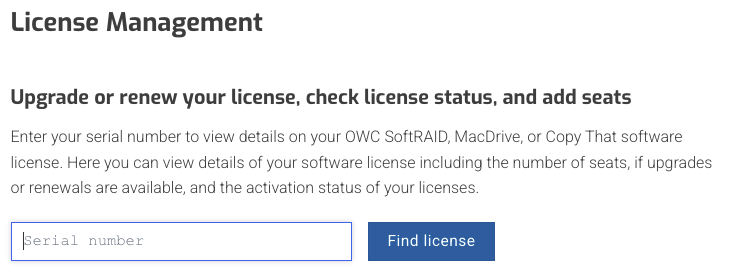
- 1. Visit the License Management page
- 2. Enter your serial number
- 3. Click Find License
You’ll see your license information screen showing:
- License status
- Number of seats (total and available)
- Active installations with nicknames
- Deactivate button for each active seat
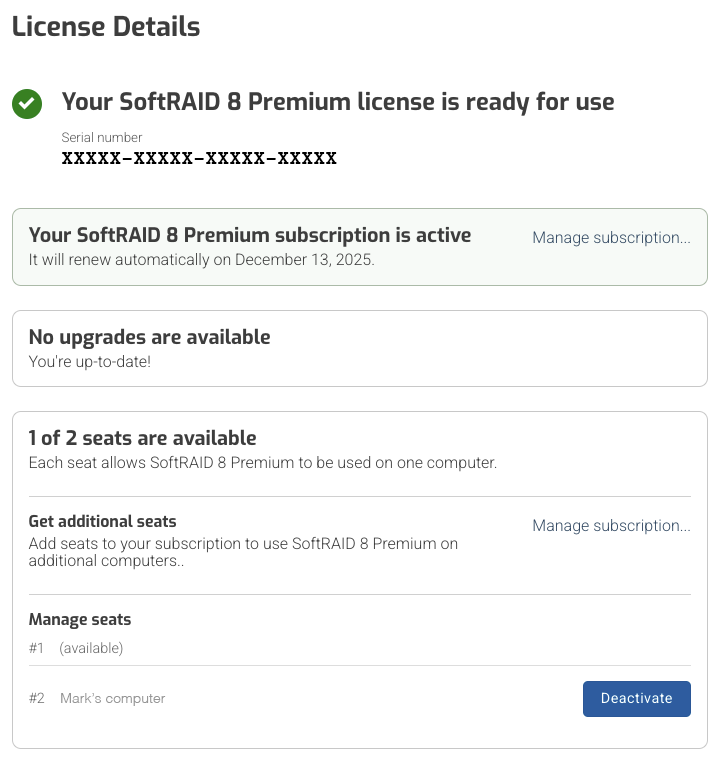
To deactivate a seat: Click the Deactivate button next to the active installation you want to reset. This will free up that seat for use on another computer.
Method 2: Deactivate from Within the Application
This method is used when you have access to the computer and want to deactivate before uninstalling or moving the license.
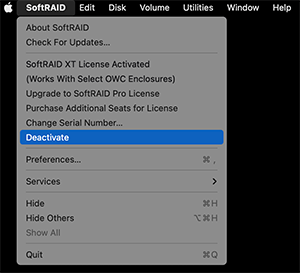
macOS:
- Open SoftRAID (or MacDrive)
- Go to SoftRAID menu → Deactivate (or MacDrive menu → Deactivate License)
- Confirm deactivation
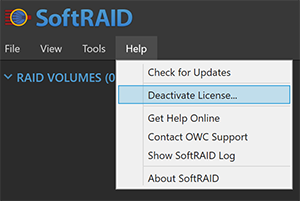
Windows:
- Open MacDrive
- Go to Help menu → Deactivate License
- Confirm deactivation
When to Deactivate
Common scenarios:
- Upgrading to a new Mac or PC
- Selling or retiring a computer
- Computer stolen or failed (use Method 1)
- Troubleshooting activation issues
- Moving license to a different machine
Note: After deactivating, you can immediately activate the license on another computer. Each license seat can only be active on one computer at a time.
Was this article helpful?