
SoftRAID Monitor Failed Error (Mac)
If you are seeing the error ”An internal part of the SoftRAID Monitor has failed”, this is caused by a known macOS permissions issue that we are actively working to resolve in a future update. In the meantime, the steps below will fix it in most cases.
Step 1: Confirm Full Disk Access for SoftRAID
- Go to System Settings → Privacy & Security → Full Disk Access
- Check whether SoftRAID is listed and enabled
- If SoftRAID is not listed, click +, navigate to your Applications folder, select the SoftRAID application, and click Open
- Make sure the toggle next to SoftRAID is turned on
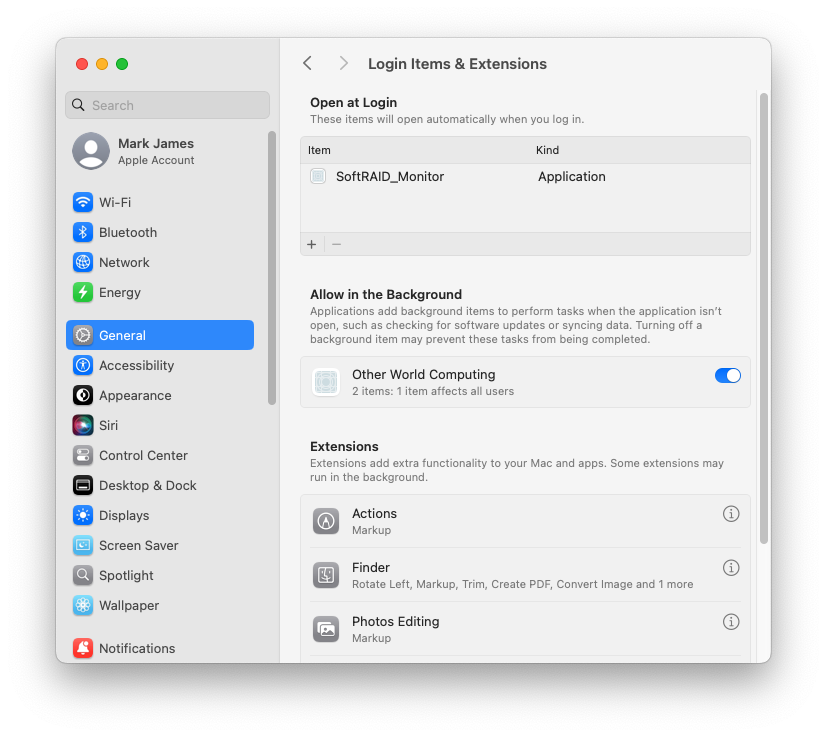
Step 2: Verify Login Items & Extensions
- Go to System Settings → General → Login Items & Extensions
- Scroll down to Allow in the Background
- Check whether Other World Computing is listed
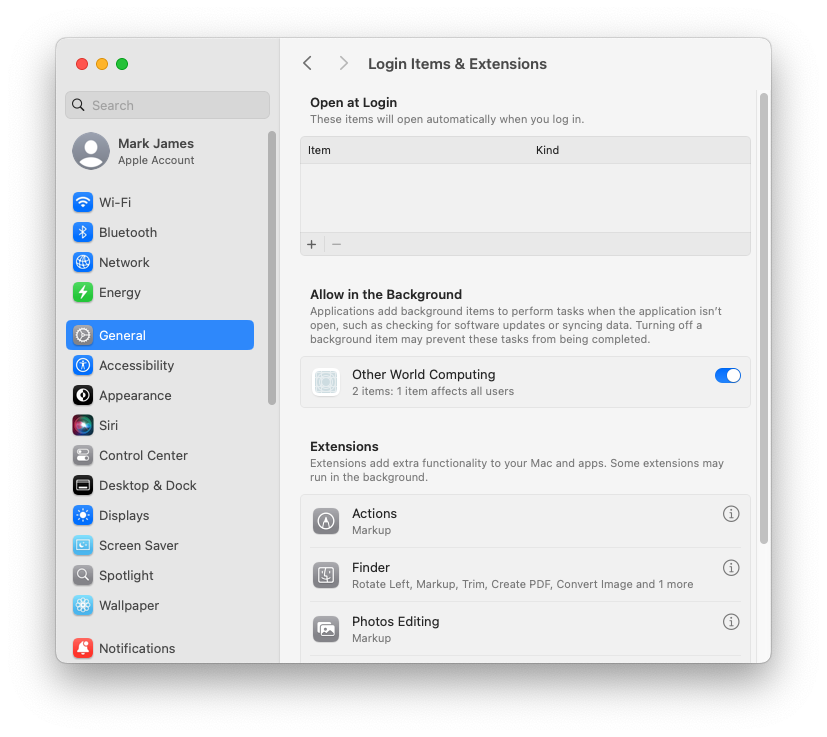
If Other World Computing is NOT listed: Contact SoftRAID Technical Support.
If Other World Computing IS listed:
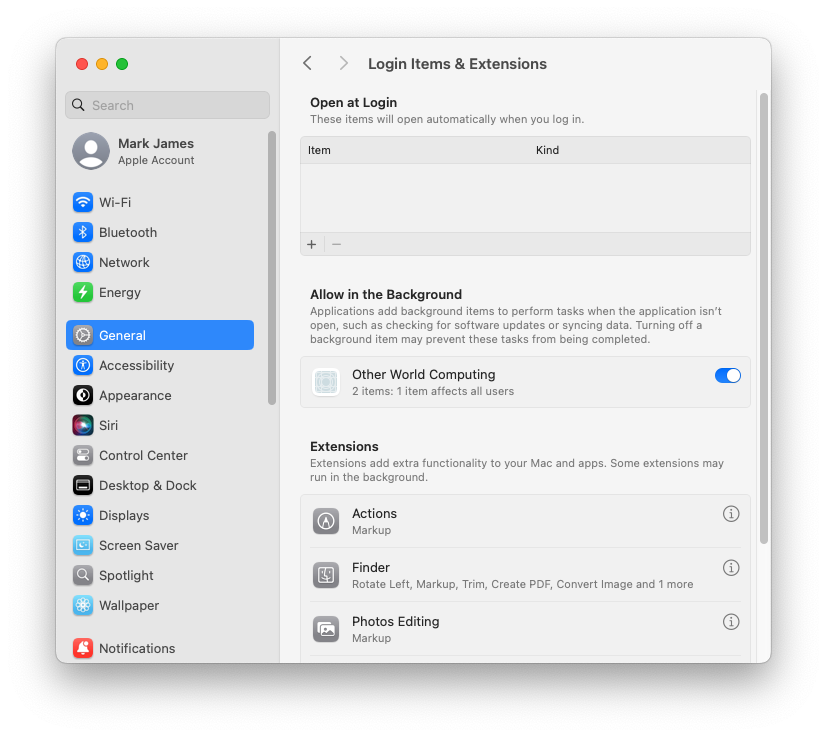
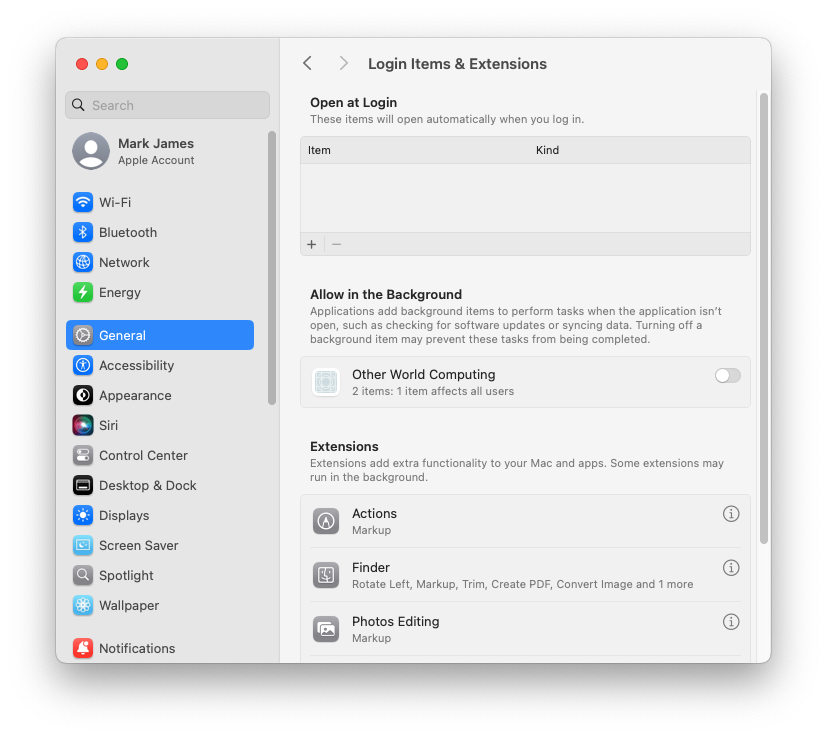
- Click the toggle next to Other World Computing to deactivate it (your administrator password will be required)
- Close System Settings
- Reopen System Settings → General → Login Items & Extensions → Allow in the Background
- Click the toggle next to Other World Computing to activate it (your administrator password will be required)
- Close System Settings
- Restart your Mac
- Launch SoftRAID and check whether the error is resolved
Step 3: Manually Add SoftRAID Monitor to Open at Login
If Step 2 does not resolve the issue:
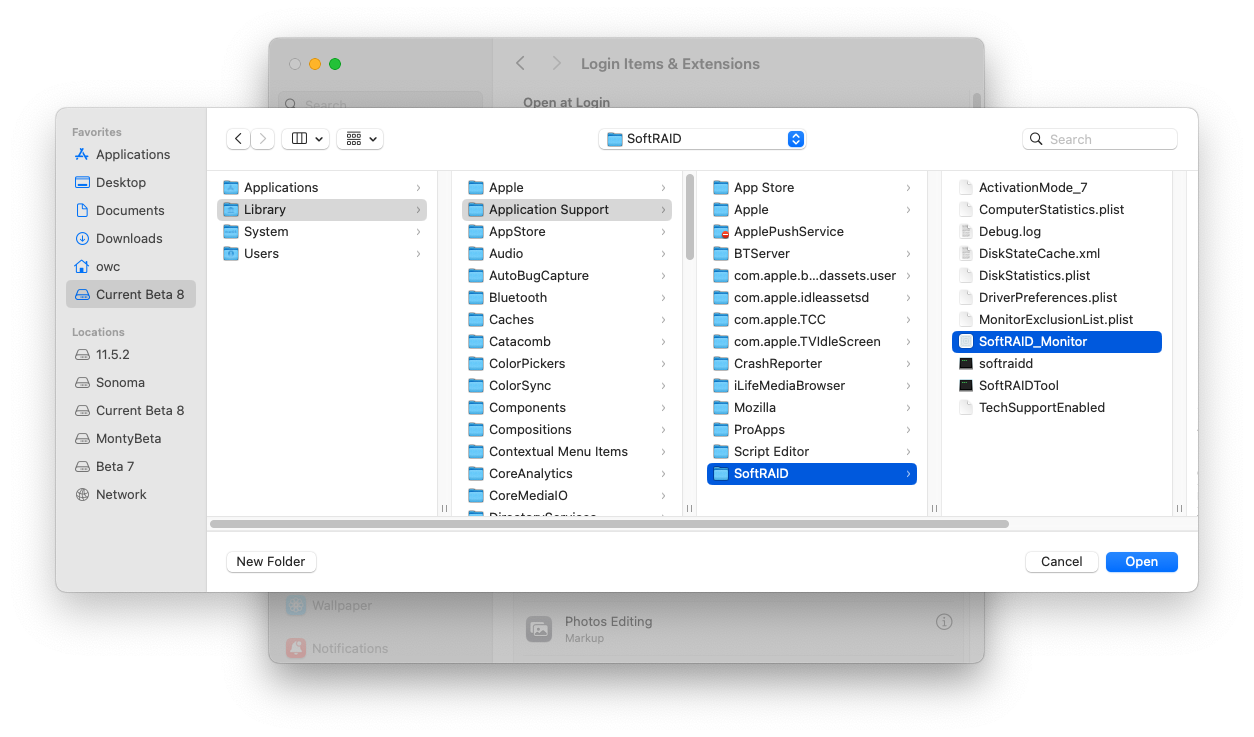
- Go to System Settings → General → Login Items & Extensions
- Under Open at Login, click +
- Navigate to the following folder: /Library/Application Support/SoftRAID
- Select SoftRAID Monitor and click Open
- Confirm that SoftRAID Monitor.app now appears in the Open at Login list
- Restart your Mac
- Launch SoftRAID and check whether the error is resolved
If None of These Steps Resolve the Issue
Contact SoftRAID Technical Support and include a SoftRAID Tech Support file (Utilities menu → Generate Report for Tech Support).
Was this article helpful?