
How do I create a SoftRAID tech support file?
How do I generate a Tech Support Report for Mac
1. Launch SoftRAID. Make sure all your disks are attached and you’re running the most recent version of SoftRAID.
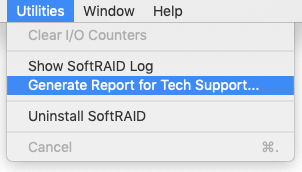
2. Select Utilities menu → Generate Report for Tech Support…
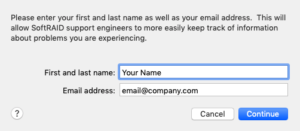
3. Enter your information:
- Enter your name and email address in the first window
- This information allows us to easily track your file and our progress in resolving your issue
- Click the Continue button
4. Save the file:
- Click the Save button
- We recommend that you save it to the default location on your desktop, where it will be easy to locate when attaching to your support ticket
5. Do NOT rename the tech support file before sending it to SoftRAID support
6. Attach this report to your support ticket email
- When attaching the file to your support ticket, please include the full text of the error message you received, so our system can auto-route the case to your Support Specialist. Otherwise there may be a delay in responding.
Note: If you are unable to launch the SoftRAID Application for any reason, your Customer Service Rep can give you instructions on using the terminal to save a tech support file.
How do I generate a Tech Support Report for Windows
1. With your drive array/set connected to your Windows computer, please download and run the OWC Windows Dianostic Tool.
2. This tool will generate a .ZIP file. Please attach this .ZIP file to the support email your received when you created your support case. This email will have your case number in the subject field.
3. Additionally, if you have or can take screenshots of the problem specifically, please attach those as well – the more information on an issue, the better!